 Tryvo
TryvoDashboard overview
The brand dashboard at a glance — sidebar, overview page and the screens you see before setup is complete.
The brand dashboard lives at tryvo.io/en/dashboard/brand/{brandId}. Everything your
team does in Tryvo happens here.
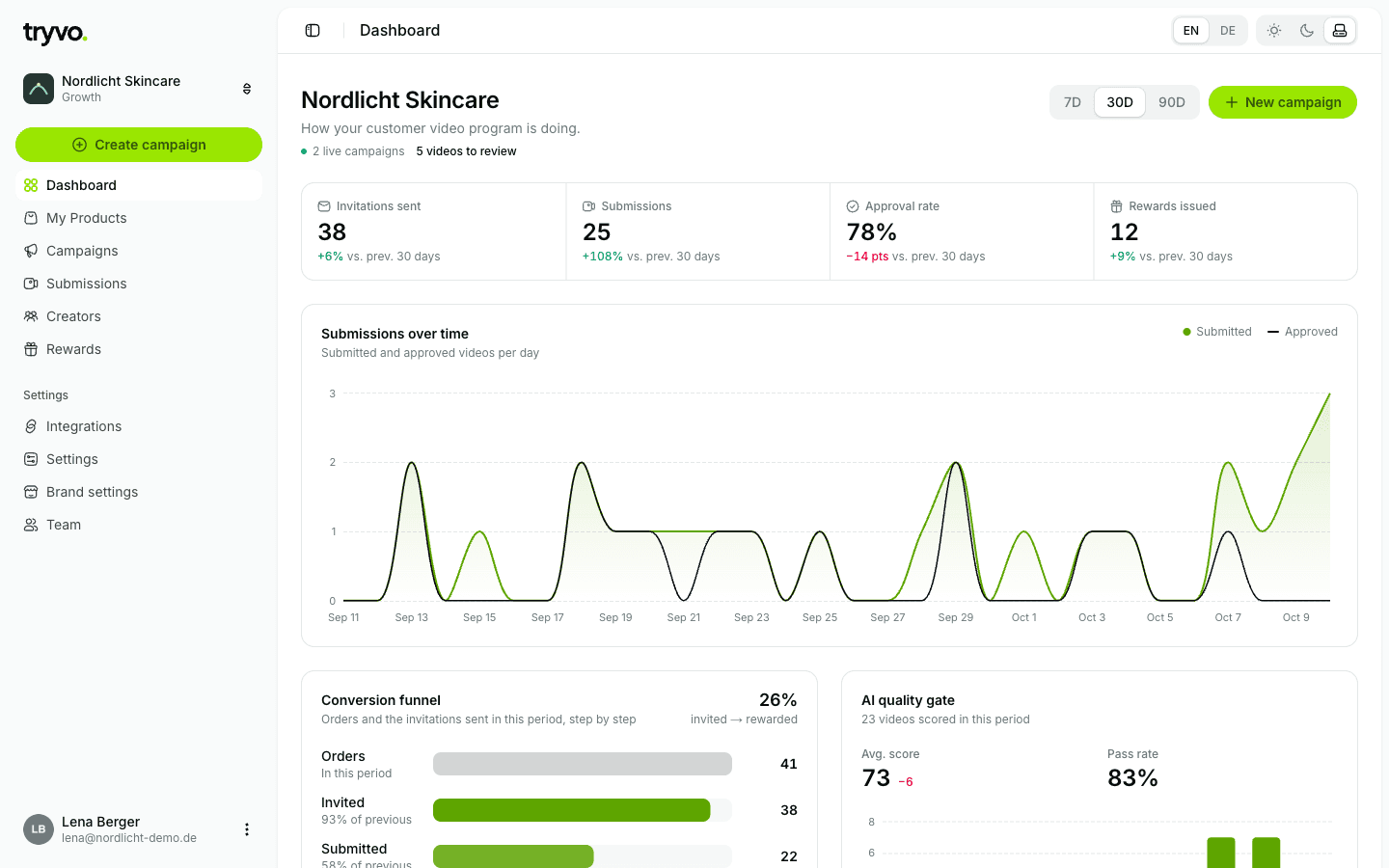
Sidebar
| Area | What you do there |
|---|---|
| Create campaign | Quick action — starts a new campaign |
| Dashboard | Key metrics, charts and the latest submissions |
| My Products | Products synced from Shopify, with orders and campaigns per product |
| Campaigns | All campaigns, their status, reward and progress |
| Submissions | Review inbox — approve or reject videos |
| Creators | Buyers who sent videos, with their history |
| Rewards | Every reward issued, pending or failed |
| Settings → Integrations | Shopify and Klaviyo |
| Settings → Settings, Brand settings, Team | Plan & billing, brand profile, team members |
At the top of the sidebar you'll find the brand switcher (if you manage several brands) and, at the bottom, your account. The header has a language switch (EN | DE) and the theme switch (light, dark, system). The sidebar can be collapsed to icons.
The sidebar also shows notices when something needs your attention — for example the remaining trial days or a reminder to connect Klaviyo.
The overview page
Use the 7D / 30D / 90D switch to change the time range. Every number compares to the previous period of the same length.
- Key metrics: invitations sent, submissions, approval rate and rewards issued.
- Submissions over time: submitted vs. approved videos per day.
- Conversion funnel: orders → invited → submitted → approved → rewarded.
- AI quality gate: average AI score, pass rate and the score distribution.
- Recent submissions: the newest videos with a shortcut to review them.
The subtitle shows how many campaigns are live and how many videos are waiting for your review. If you have no campaign yet, the page shows a short getting-started checklist.
Before setup is complete
Until your brand is ready, the dashboard shows one of these screens instead of the pages:
| Screen | When | What to do |
|---|---|---|
| Connect your Shopify store | The brand has never been connected to a store | Install Tryvo from your Shopify admin |
| Reconnect Shopify | The store was disconnected or its access expired | Reconnect the same store |
| Pick a plan | No active plan and no running trial | Start the trial or choose a plan |
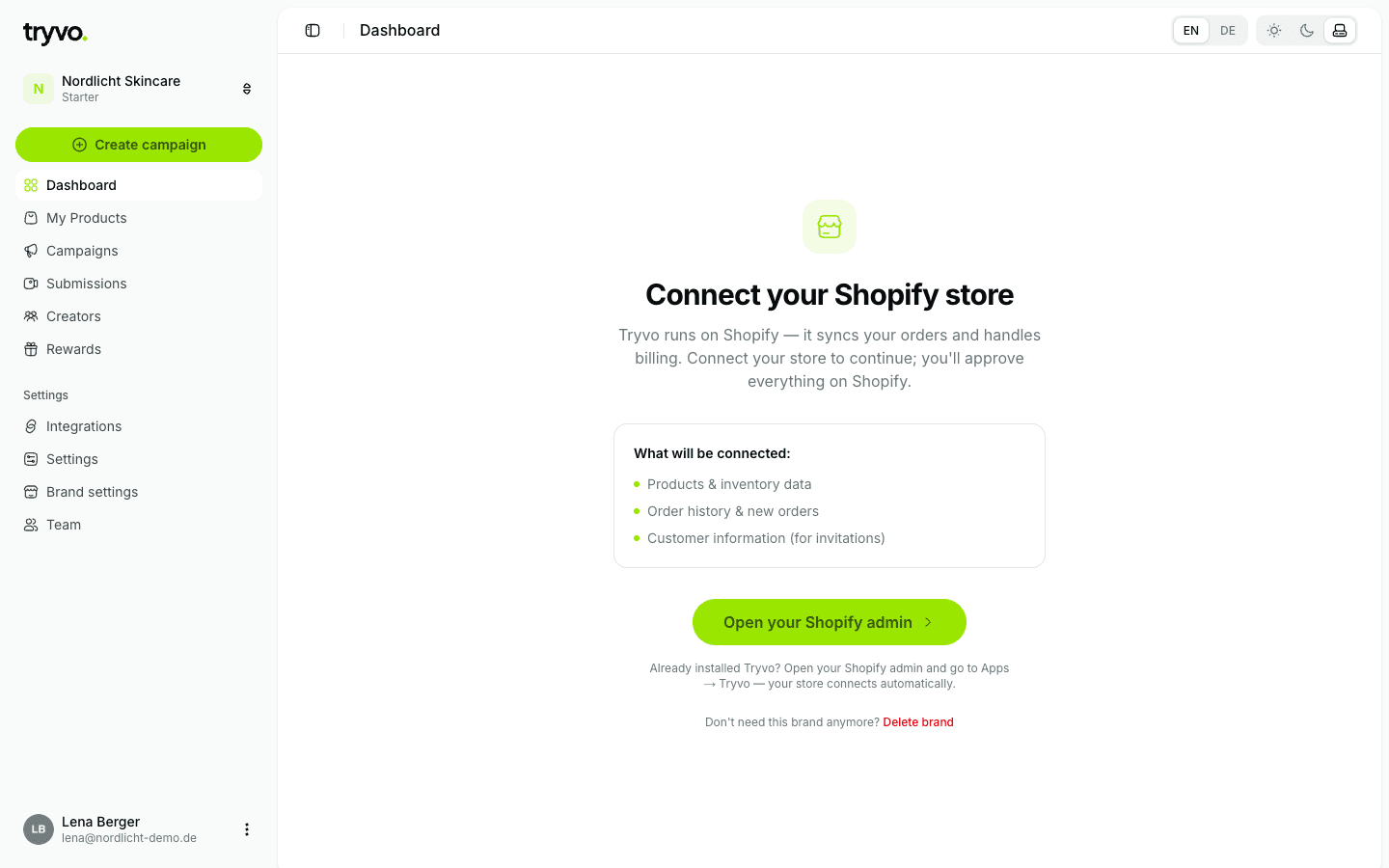
Each of these screens also lets you delete the brand if you don't need it anymore.