 Tryvo
TryvoCampaigns
Create a campaign, choose the reward, go live — and what every campaign tab shows.
A campaign ties one product to one reward. While a campaign is live, every fulfilled order of that product (from buyers with marketing consent) creates an invitation.
Campaign list
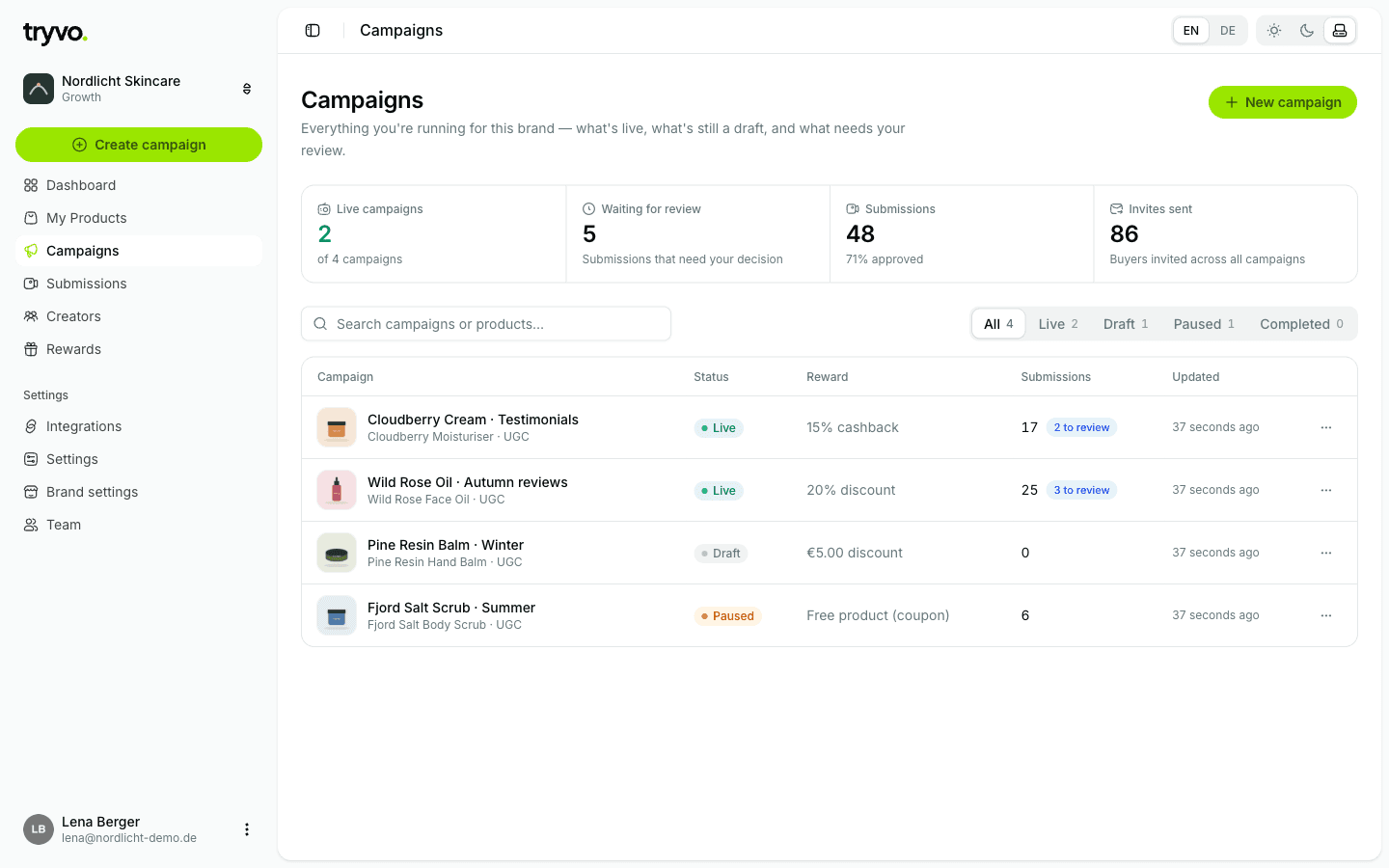
The list shows live campaigns, submissions waiting for review, total submissions and invitations sent. Filter by All, Live, Draft, Paused, Completed or search by campaign or product name. Each row shows the status, the reward, the number of submissions and how many are waiting for review.
Create a campaign
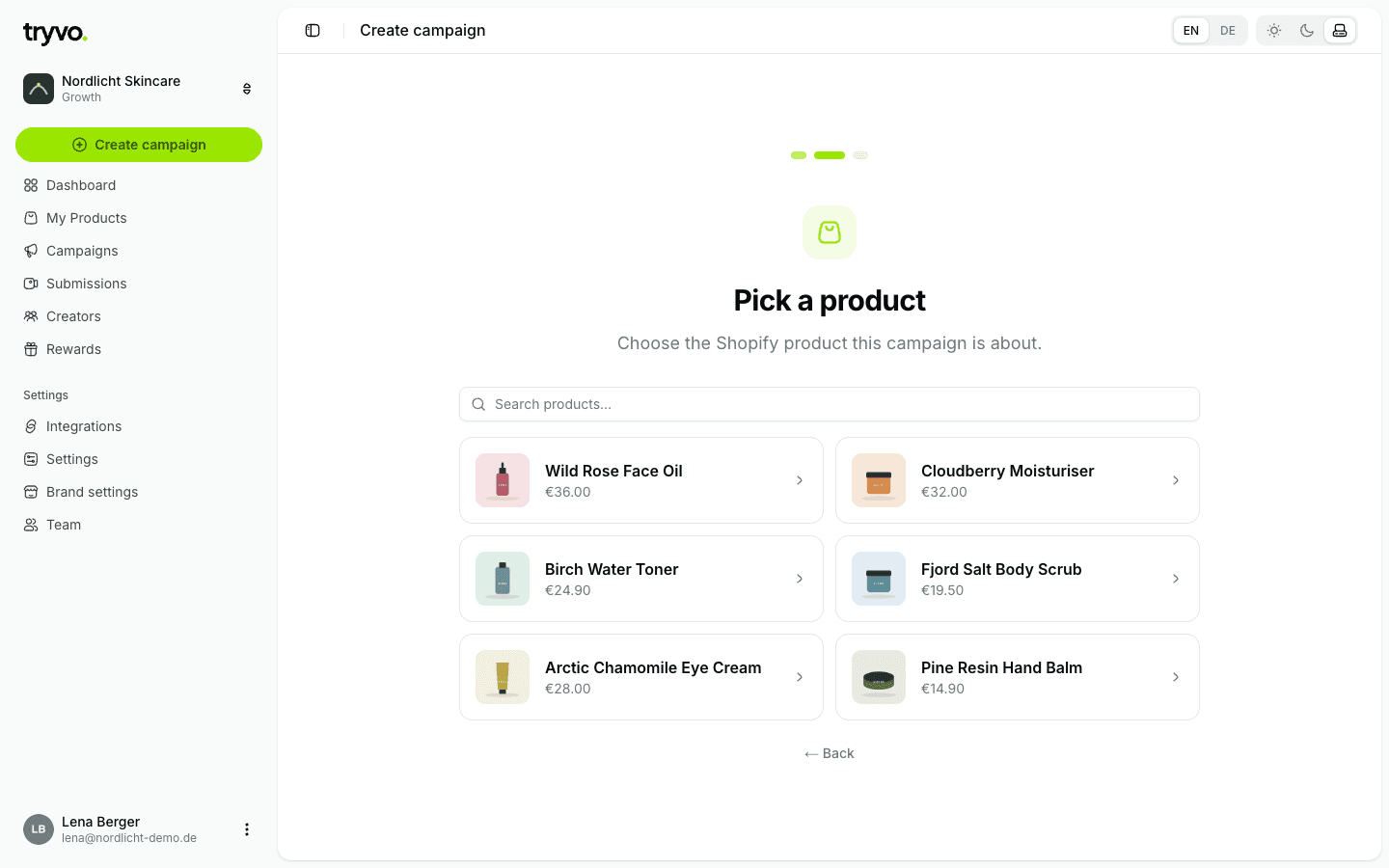
Configure
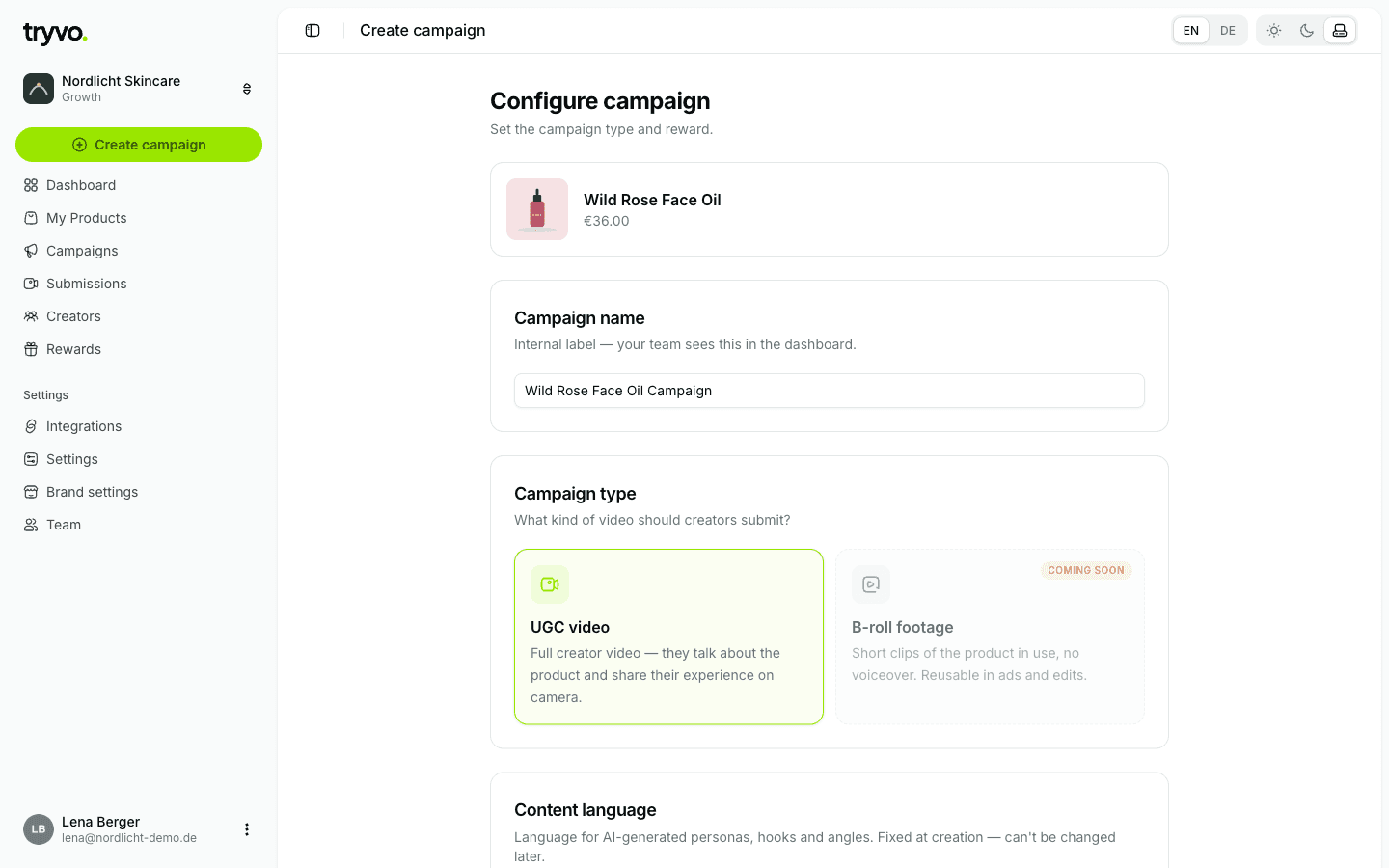
| Field | Notes |
|---|---|
| Campaign name | Internal label — only your team sees it. Defaults to "{product} Campaign". |
| Campaign type | UGC video: a full creator video where the buyer talks about the product. B-roll (product clips without voice-over) is coming soon. |
| Content language | German or English. Sets the language of the buyer page, the AI personas, angles and video ideas. Fixed at creation — it can't be changed later. |
| Reward | What the buyer gets for an approved video — see below. |
Save
The campaign is created as a Draft. No invitations go out yet.
Reward types
| Reward | Options | How Tryvo issues it in Shopify |
|---|---|---|
| Discount | Percent or fixed amount (EUR, USD, GBP, CHF), validity in days, maximum uses | A unique discount code (TRYVO-…), valid once per customer |
| Cashback | Percent of the order or fixed amount | A refund on the buyer's original order, back to their original payment method |
| Free product | Pick a product; ship it or send a coupon | Ship: a draft order at 100% off that you complete in Shopify. Coupon: a single-use 100% discount code for that product |
You can change the reward later via ⋯ → Edit reward on the campaign page. The change applies to every video you approve after saving; rewards already issued stay as they are.
Going live
Use the status switch at the top right of the campaign: Draft · Live · Pause.
Go live is locked until:
- Klaviyo is connected — invitations are sent through Klaviyo, and
- the campaign has at least one persona and one angle (not archived) — see AI personas & angles.
| Status | Invitations | Existing buyer links |
|---|---|---|
| Draft | None | — |
| Live | Created for every fulfilled order of the product | Work |
| Paused | None | Keep working — buyers who were already invited can still submit |
Invitations go out as soon as the order is fulfilled — there is no waiting period.
Campaign tabs
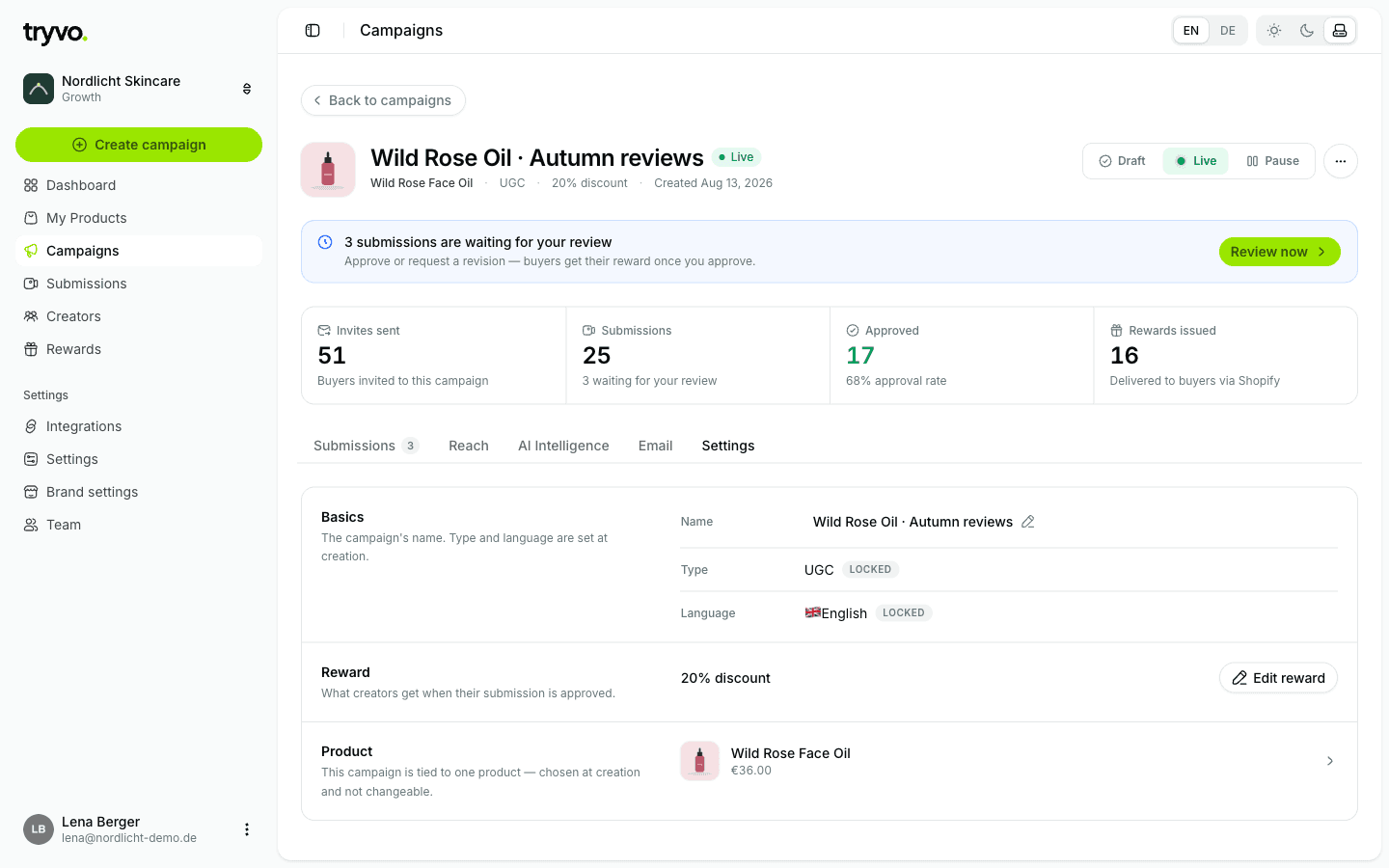
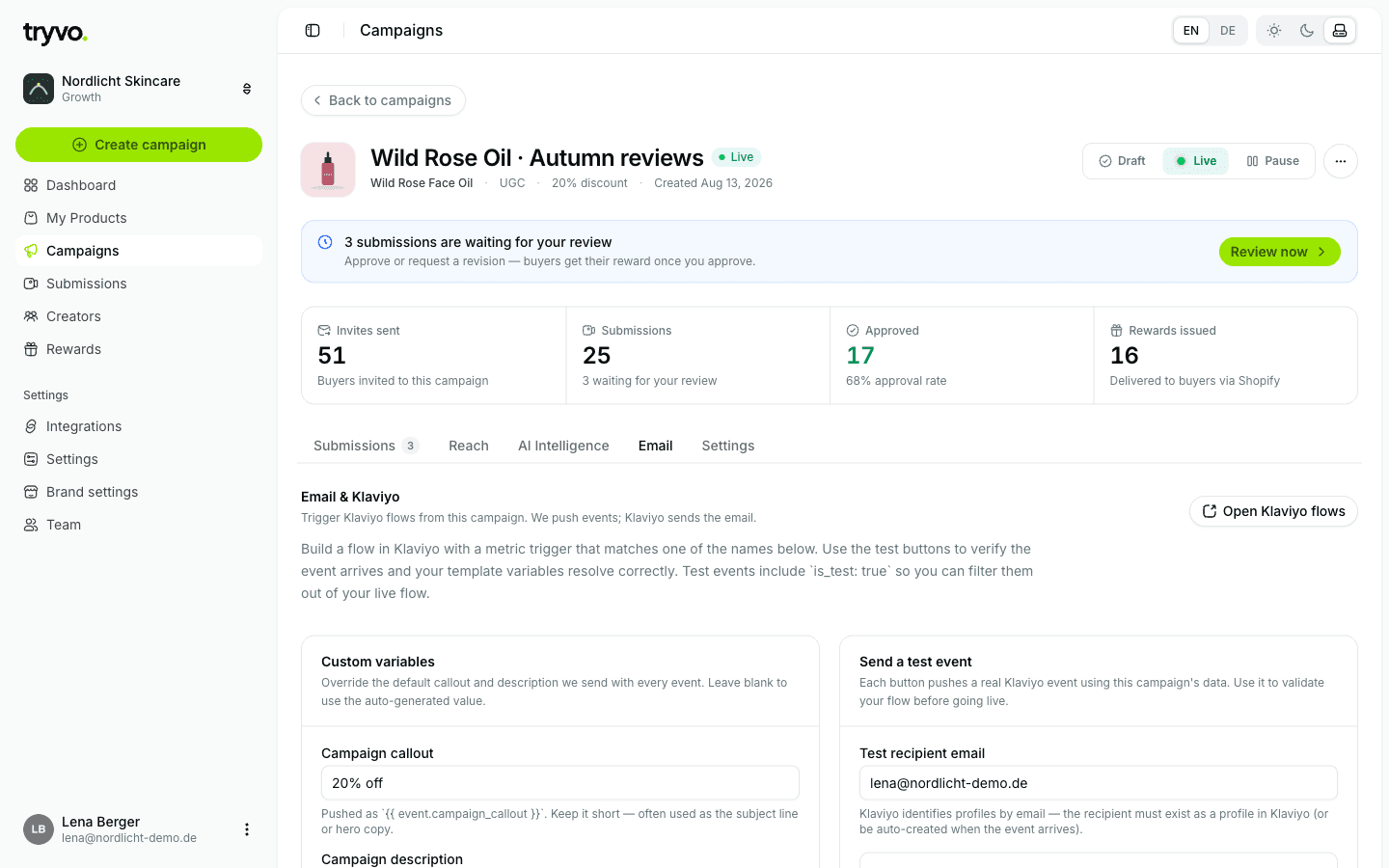
The campaign page shows key metrics (invitations, submissions, approved, rewards issued) and a notice when videos are waiting for your review. Below are five tabs:
Submissions
All videos for this campaign with score, status and attempt number. Create test link gives you a personal buyer link to try the flow yourself.
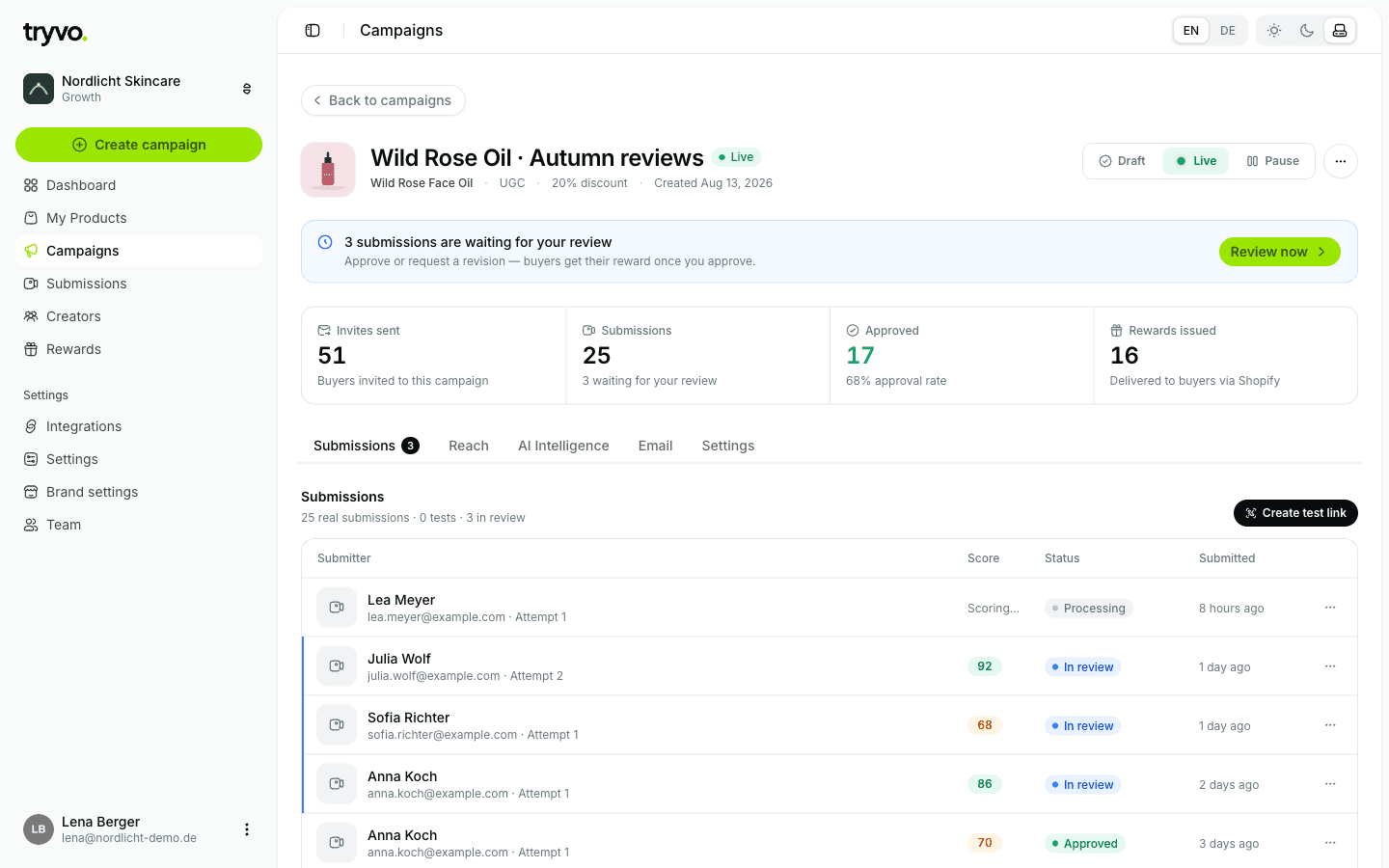
Test-link submissions are marked TEST. They don't count toward your submission limit and don't issue a reward (there's no Shopify order behind them). You can delete test invitations at any time.
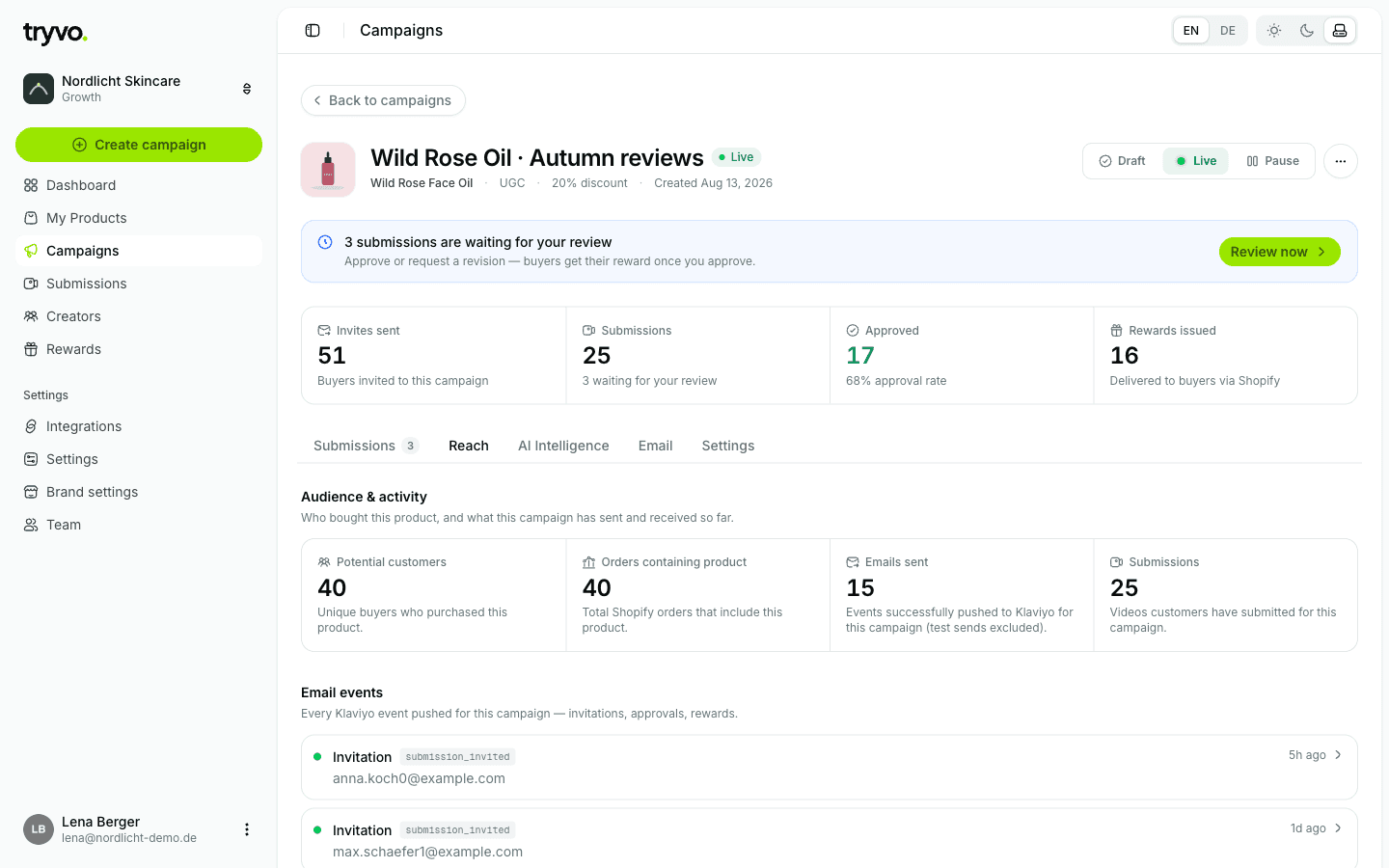
Reach
How many potential customers bought the product, how many orders contain it, how many emails were sent through Klaviyo and how many videos came in. Below, every email event sent for this campaign — click one to see its details and the data that was sent.
AI intelligence
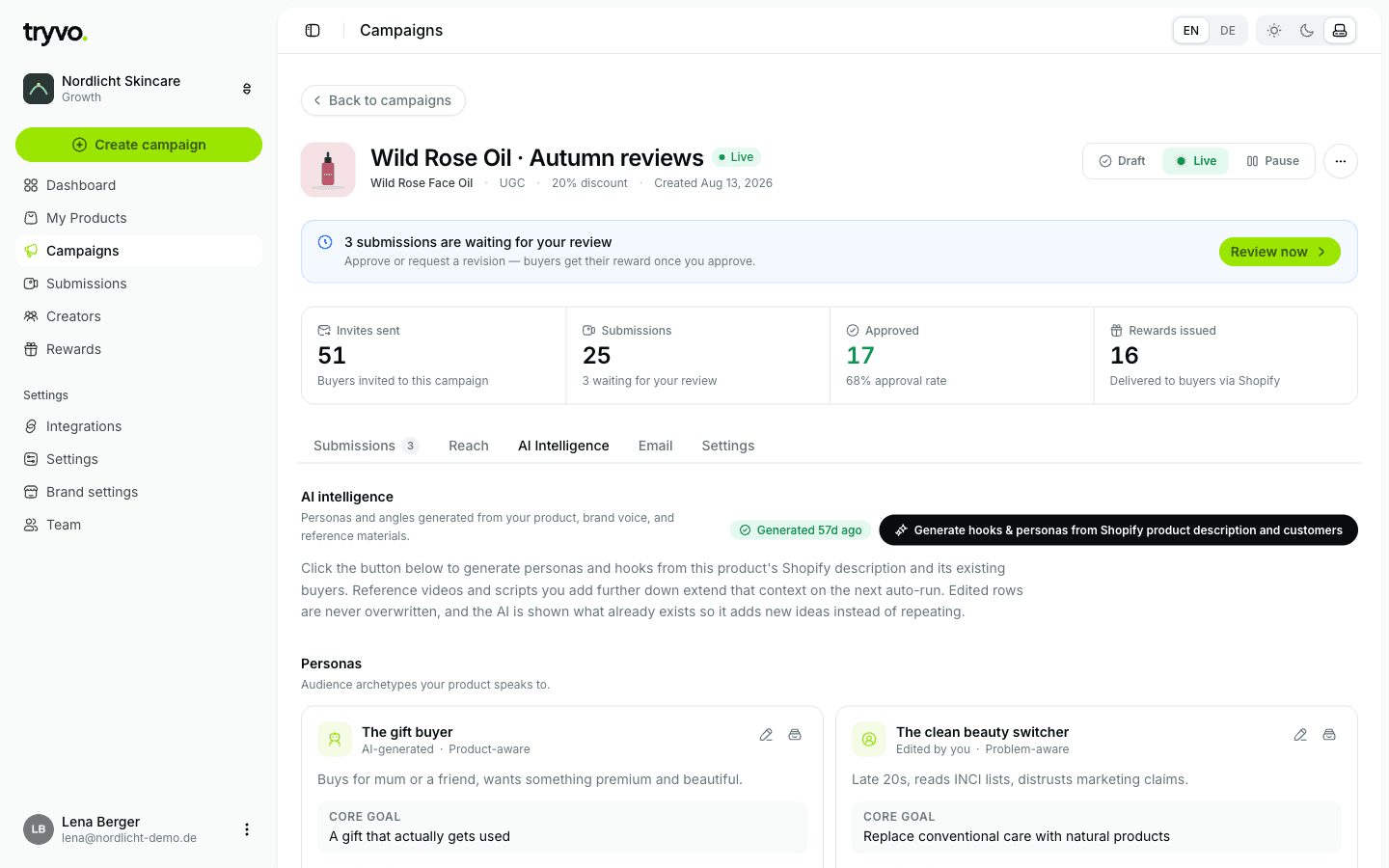
Personas and angles for this campaign, plus reference material. See AI personas & angles.
Everything for your Klaviyo flows: the metric names, your custom variables (campaign callout and description), a Send test button per event, a variable reference and a starter template. See Email & Klaviyo.
Settings
Name (editable), type and language (fixed), reward (editable) and product (fixed).